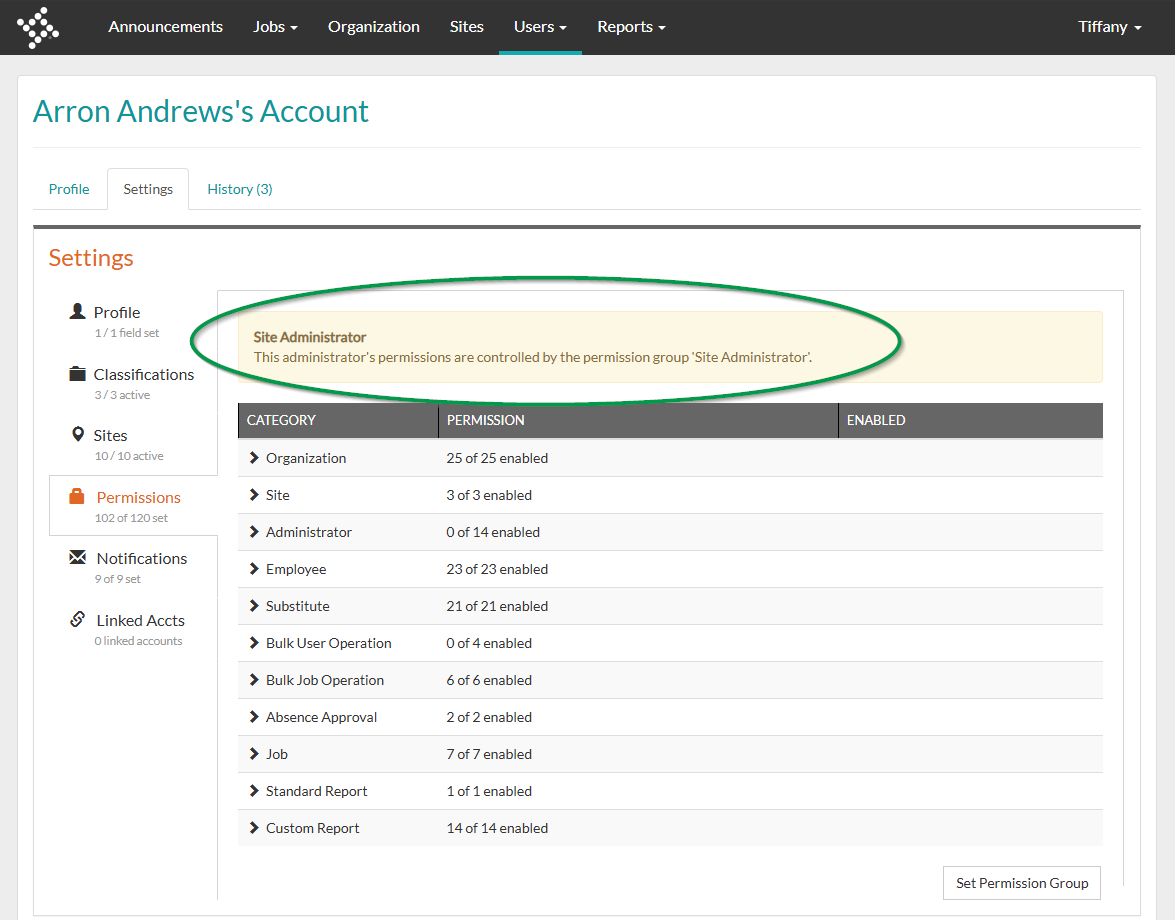
This is a step-by-step guide on how to add/update organization administrator permission groups.
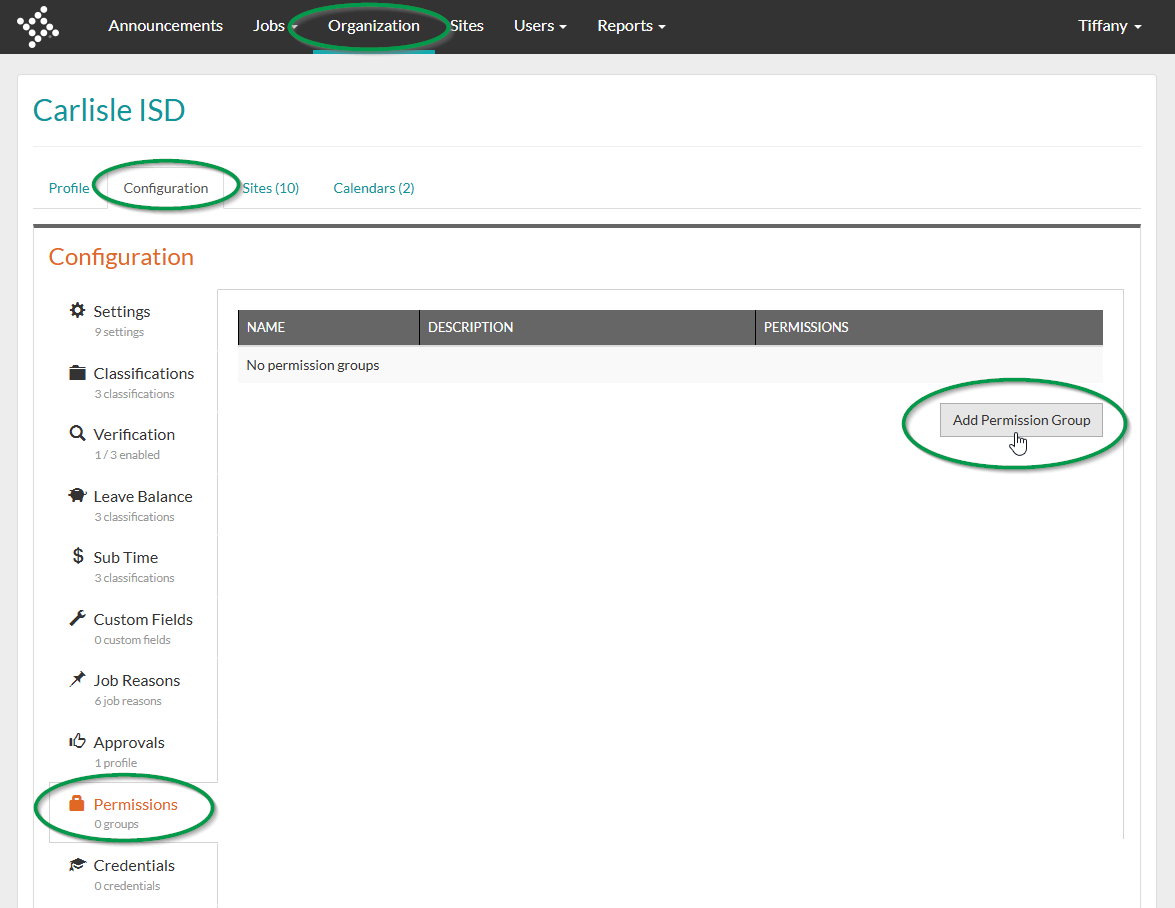
1. To add a new Permission Group, navigate to Organization > Configuration > Permissions and click Add Permission Group.
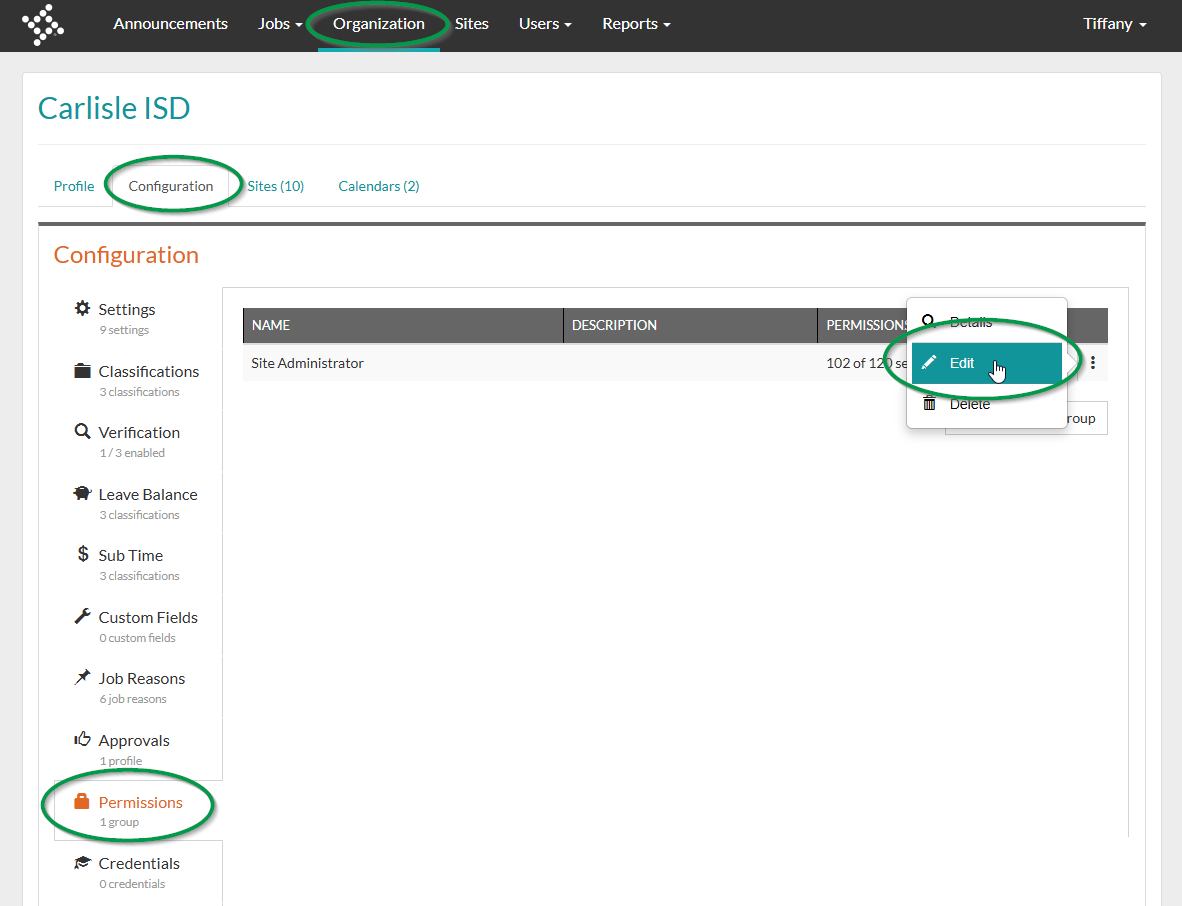
2. To edit an existing Permission Group, navigate to Organization > Configuration > Permissions > click the three dots next to the Permission Group and click Edit.
3. When adding a permission group, enter the Name of the Permission Group and optionally enter the Description.
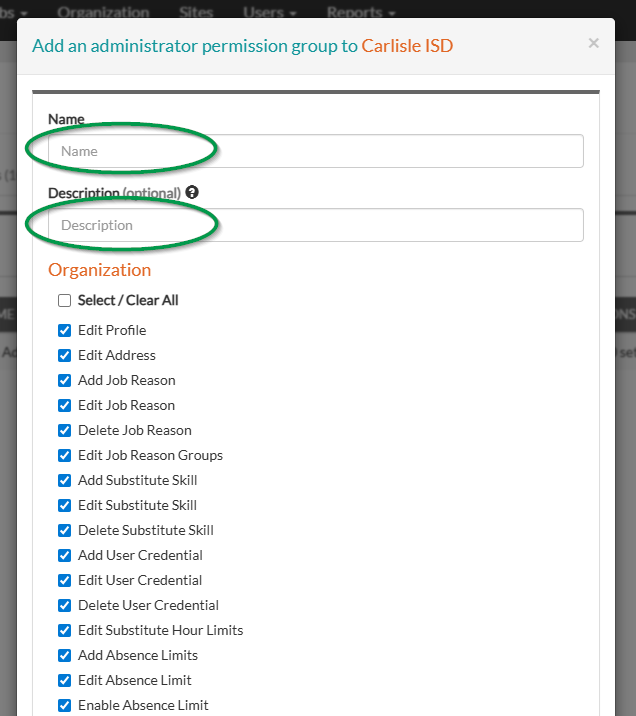
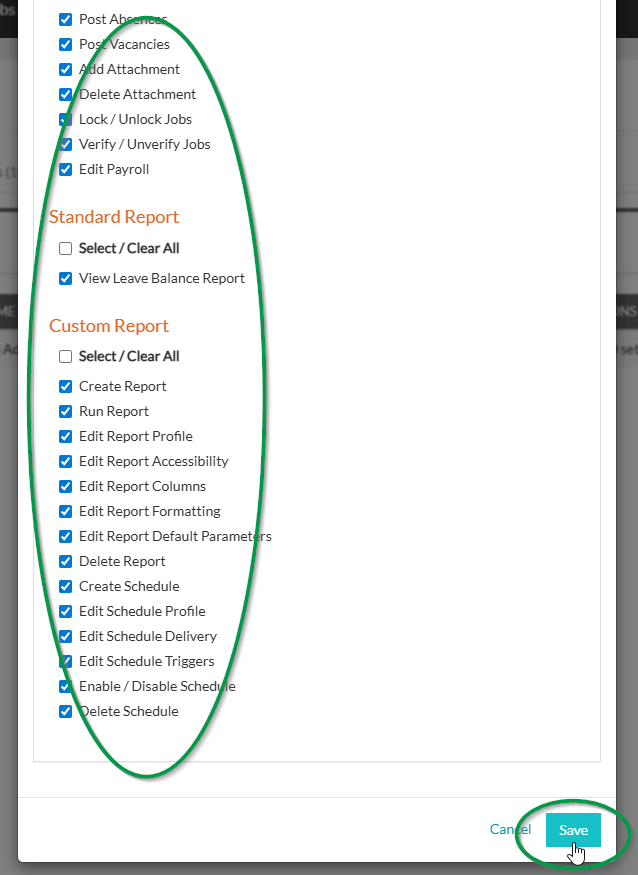
4. Select all applicable permissions for this Permission Group and click Save at the bottom of the list.
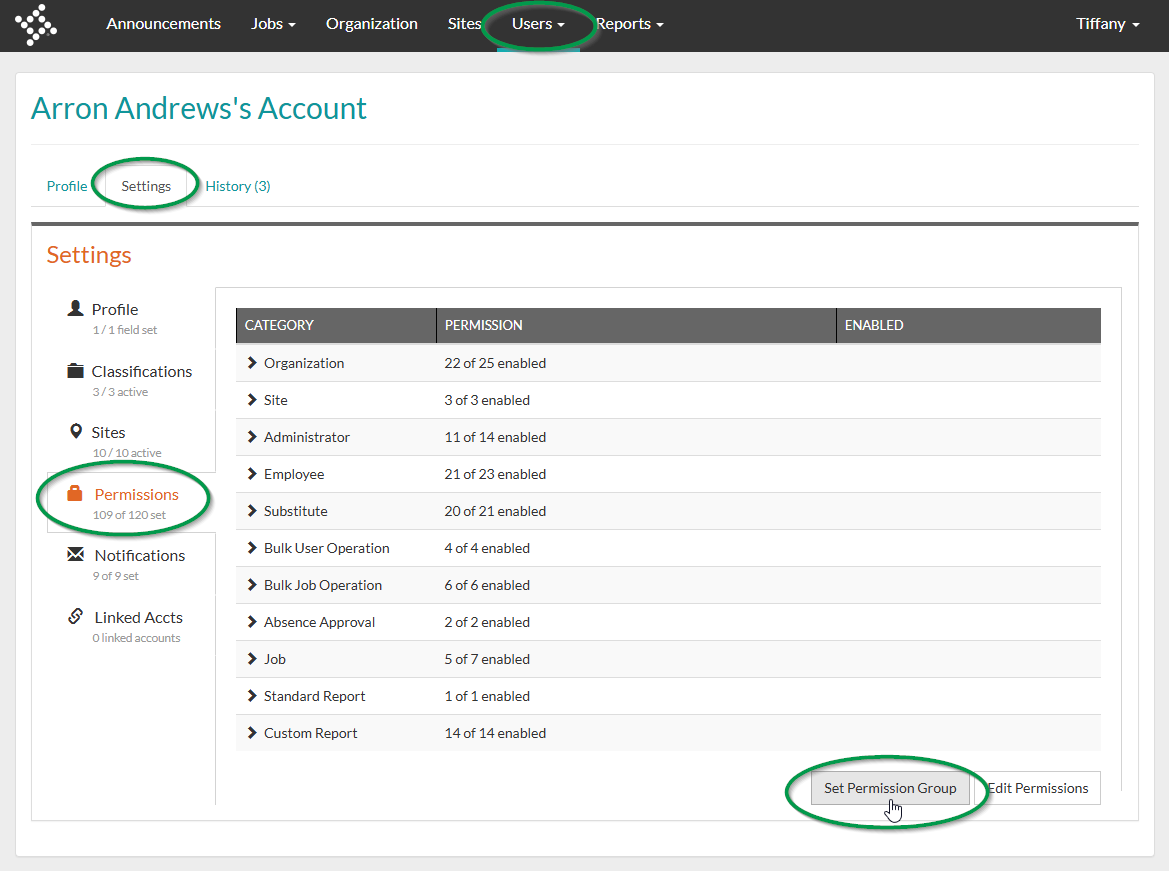
5. Once you have created a Permission Group, it can be assigned to an administrator by navigating to a User > Settings > Permissions > and clicking Set Permission Group.
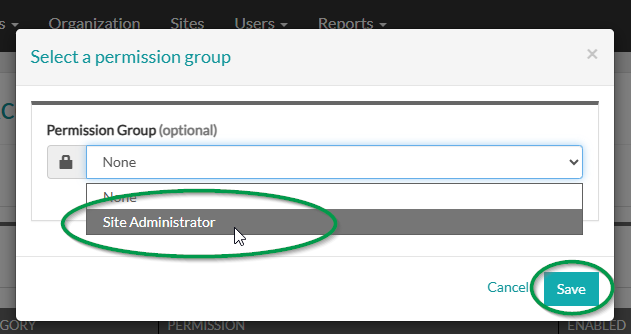
6. Select the desired Permission Group from the dropdown menu and click Save.
7. Notice the yellow banner above the permissions list indicating that this user's permissions are now controlled by the Permission Group.