This is a step-by-step guide on how to view user import results.
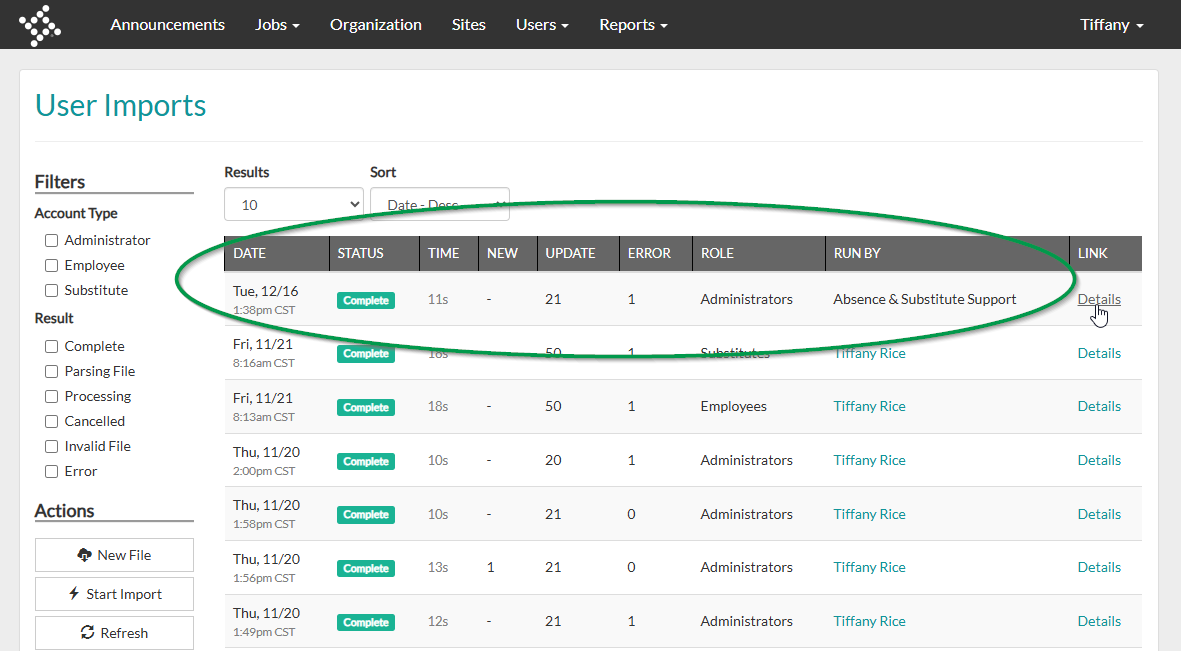
1. Navigate to Users > Import Users.
Basic summary data about each import can be found directly within the user imports dashboard. The dashboard includes the following data:
- Date
- Status
- Time (how long the import took in seconds)
- New (number of new records included in the file)
- Update (number of updated records included in the file)
- Error (number of error records included in the file)
- Role (which user role the file impacted)
- Run by (which user executed the import)
Note: If you do not see the Import Users and/or the New File options, read the Who can update bulk users solution record to confirm you have the correct permissions to view and/or perform bulk user updates.
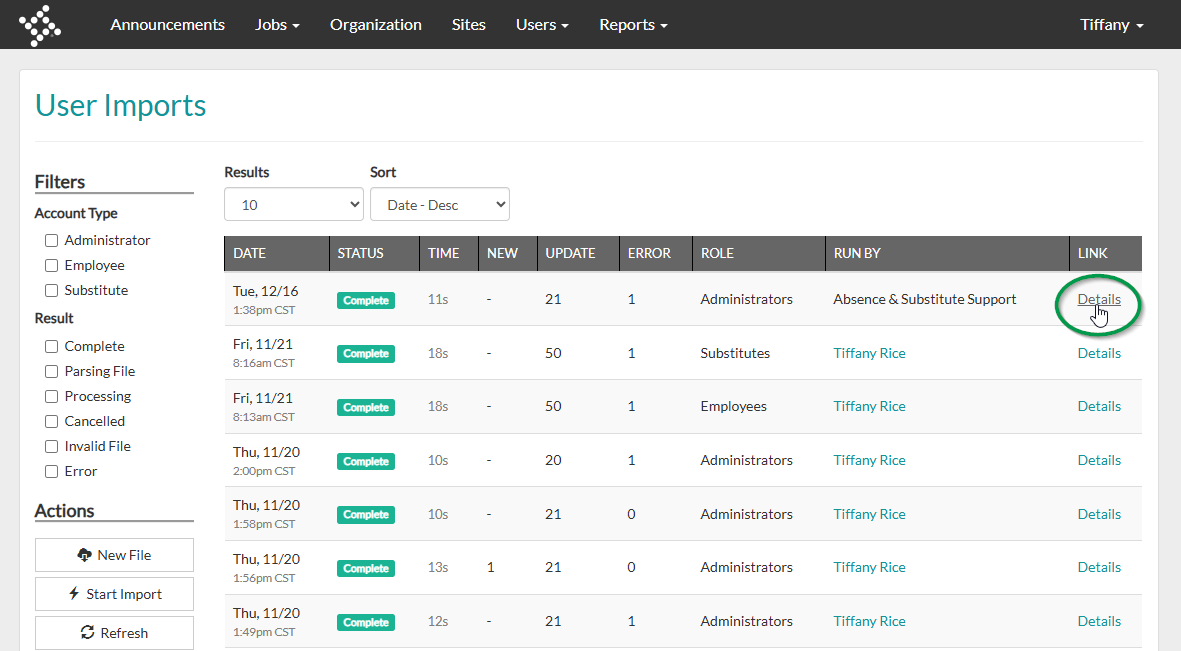
2. Select Details for the desired import.
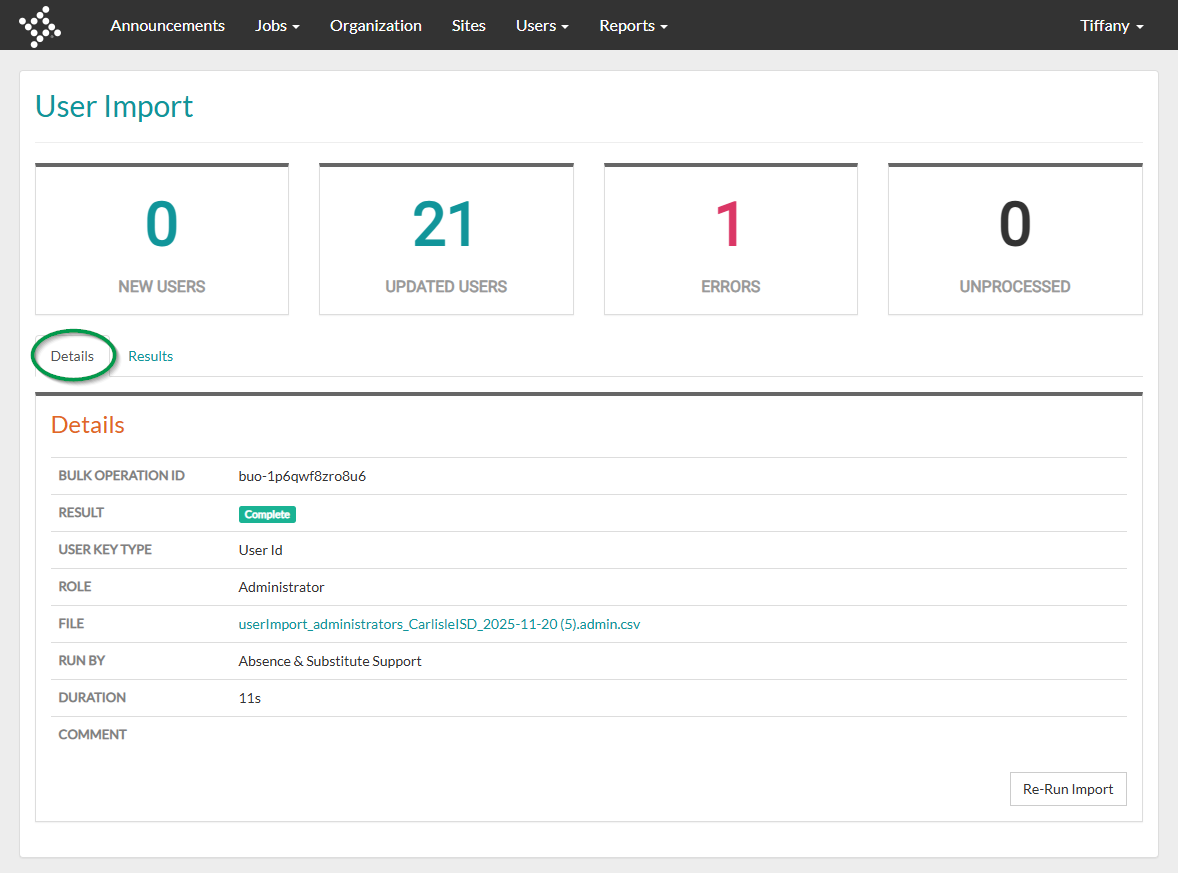
3. The Details tab will give a more detailed view of the information on the dashboard.
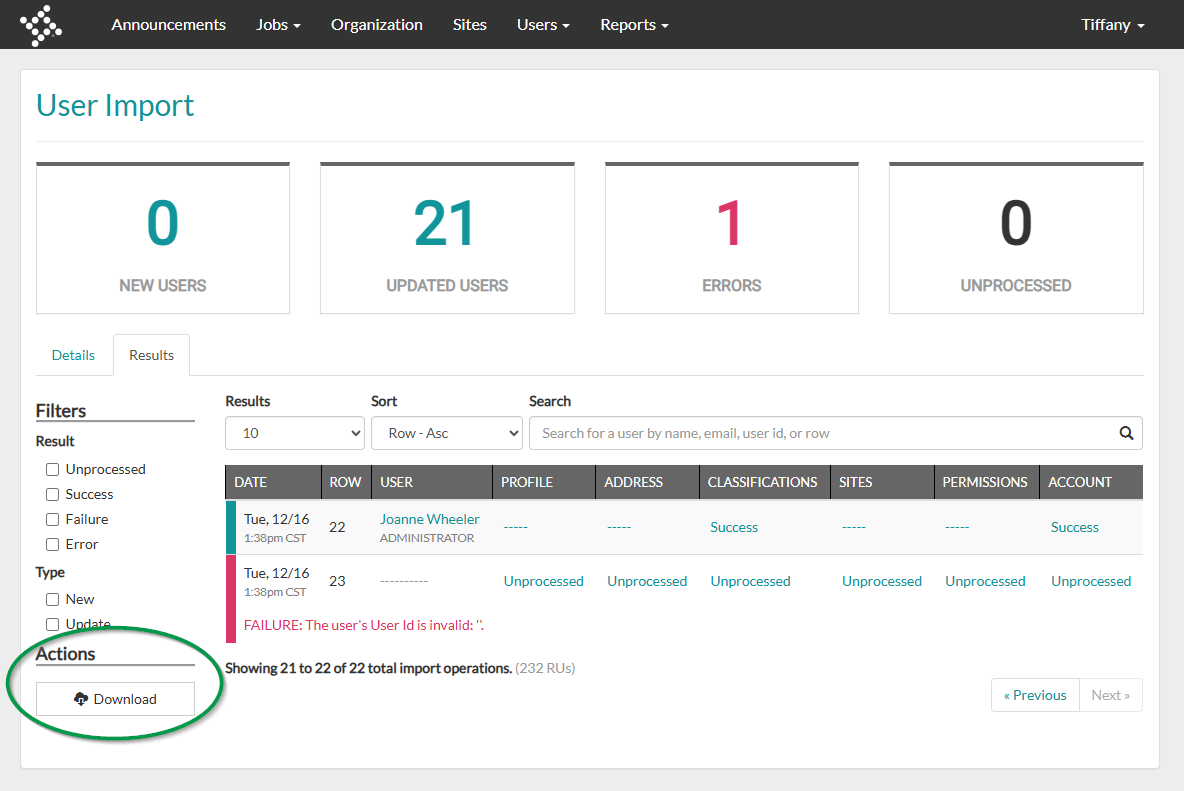
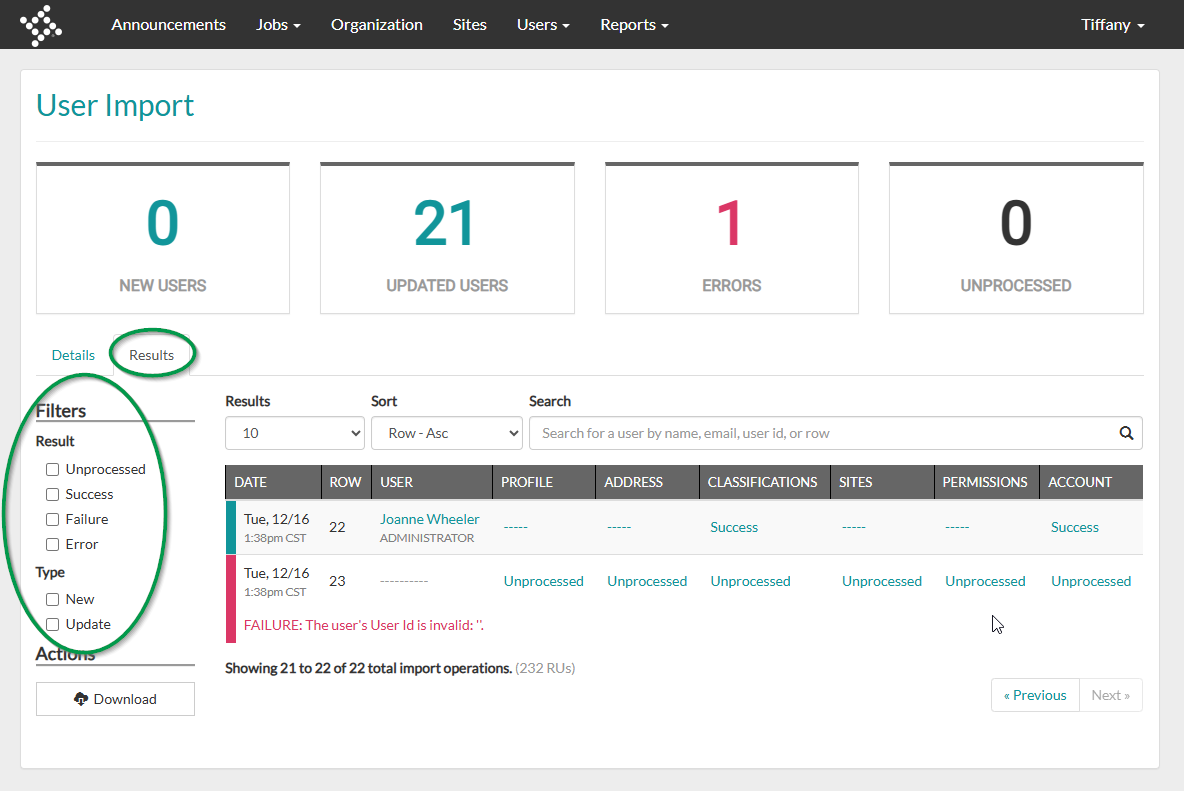
4. The Results tab will display a row-by-row breakdown of what was updated or added to the system. This screen also includes Filters to easily find specific records.
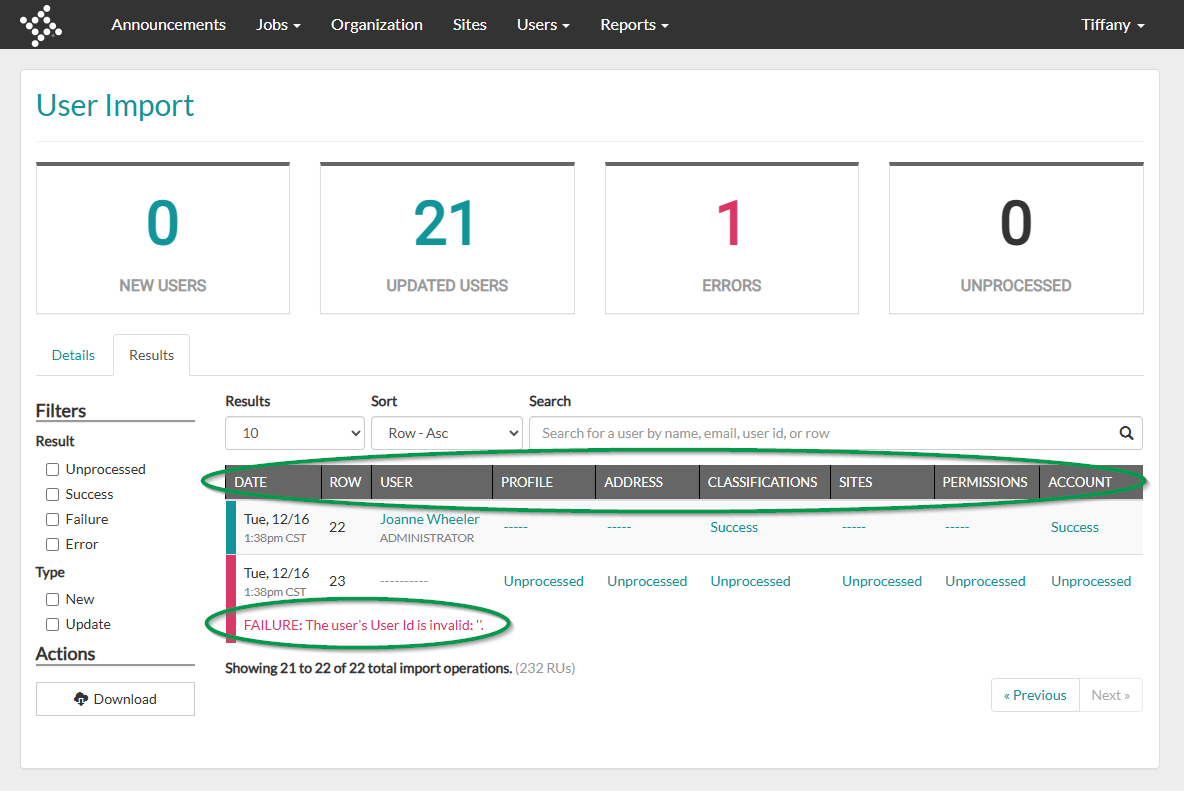
5. Based on the import type, the columns will show what attributes of a user were updated.
Note: If any of the imported records were unsuccessful, this screen will also display what caused the failure.
6. The Results tab also includes the ability to Download the results of the import for your records.
Note: The Download function only downloads errors from each import. Success and skips are not included.