This is a step-by-step guide on how to configure which administrators can bulk update users.
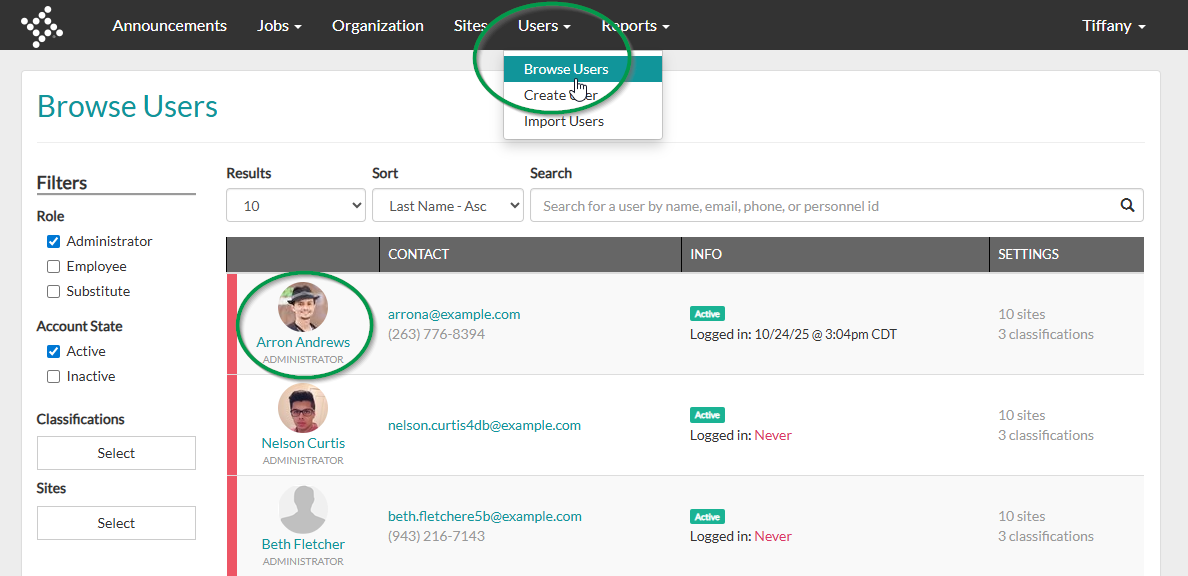
1. Navigate to Users > Browse Users. Select an administrator to update.
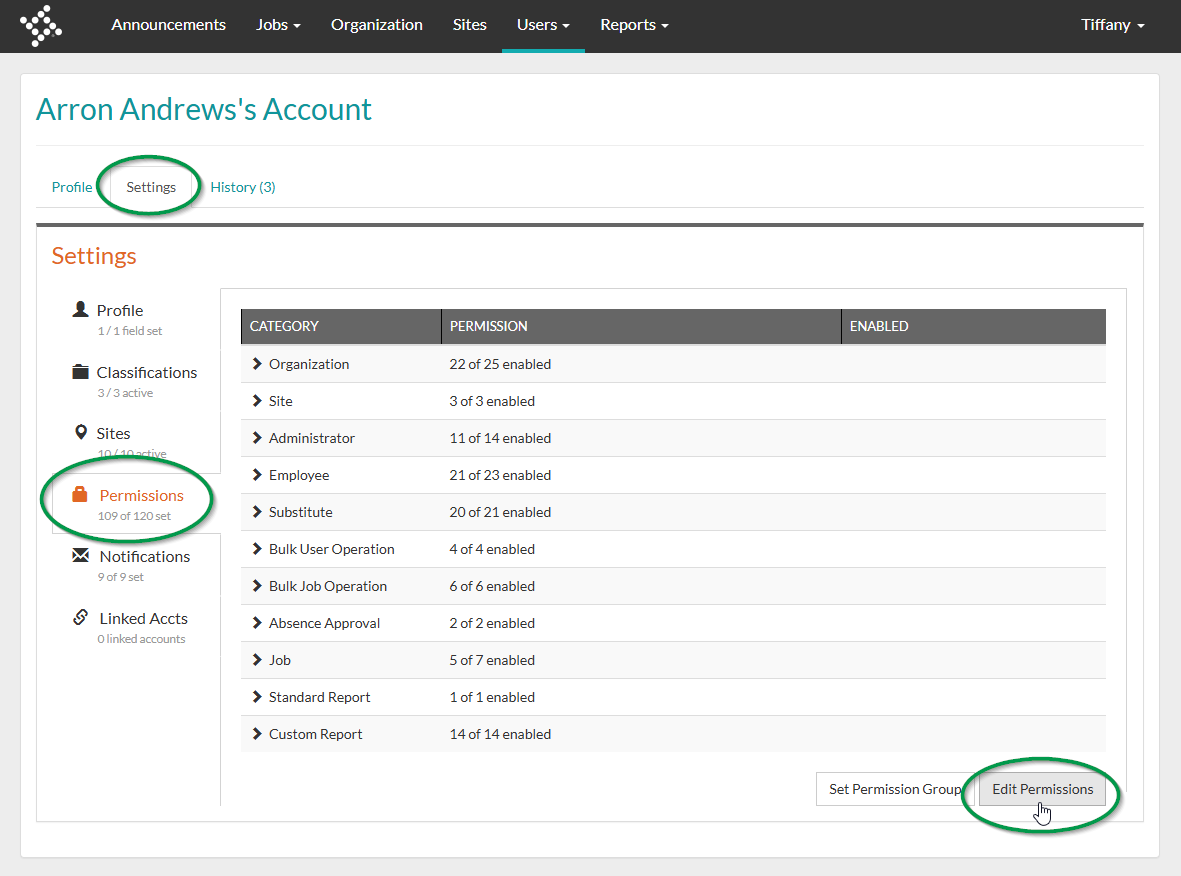
2. Navigate to Settings > Permissions > and select Edit Permissions.
- If you do not see the Edit Permissions options, check with your organization's primary administrator to confirm you have the correct permissions to edit the permissions of other users.
- If Permission Groups have been setup at the organization level, you can assign the applicable permission group via the Set Permission Group. To create or edit permission groups, view this record: Permission Groups.
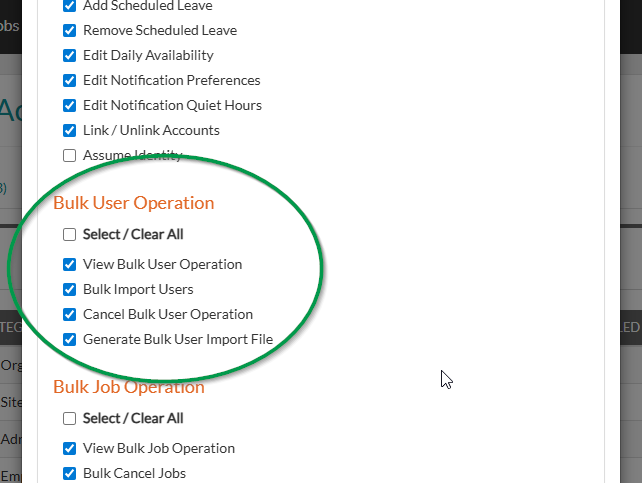
3. If editing individual permissions, scroll down in the permissions list to the Bulk User Operation section to find the appropriate permissions.
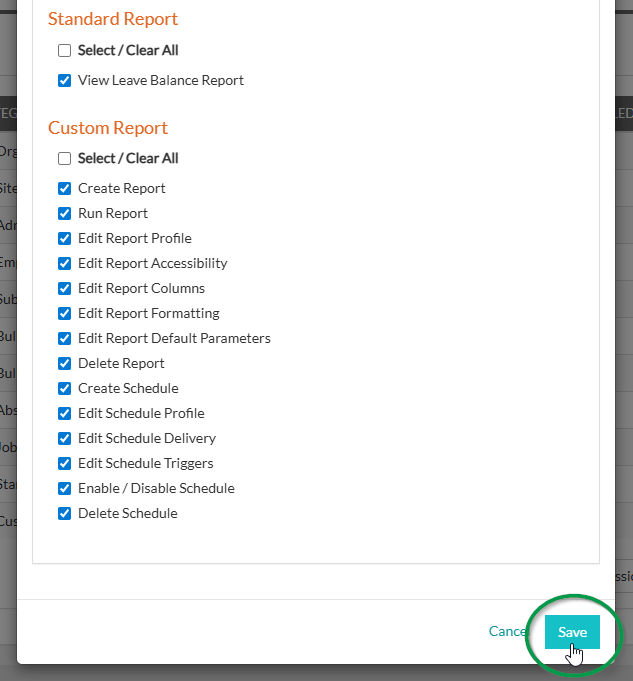
4. Scroll to the bottom of the permissions list and select Save.
IMPORTANT:
If Bulk User permissions are still not showing for users where permissions have been enabled, try the following:
- Have the user log out of the system and log back in.
- If that does not resolve the issue, send an email to absence.substitute@tylertech.com. “Enable User Imports” may not be enabled for the organization. This can be resolved by our support team.