This is a step-by-step guide on how to override payroll codes on a job.
Note: To view/edit payroll codes on a job, the "Public School Payroll" setting must be enabled by a Tyler support representative. Email absence.substitute@tylertech.com with a request to enable this setting if payroll codes are not visible on jobs and you would like them to be.
1. Navigate to Jobs > Browse Jobs > Details.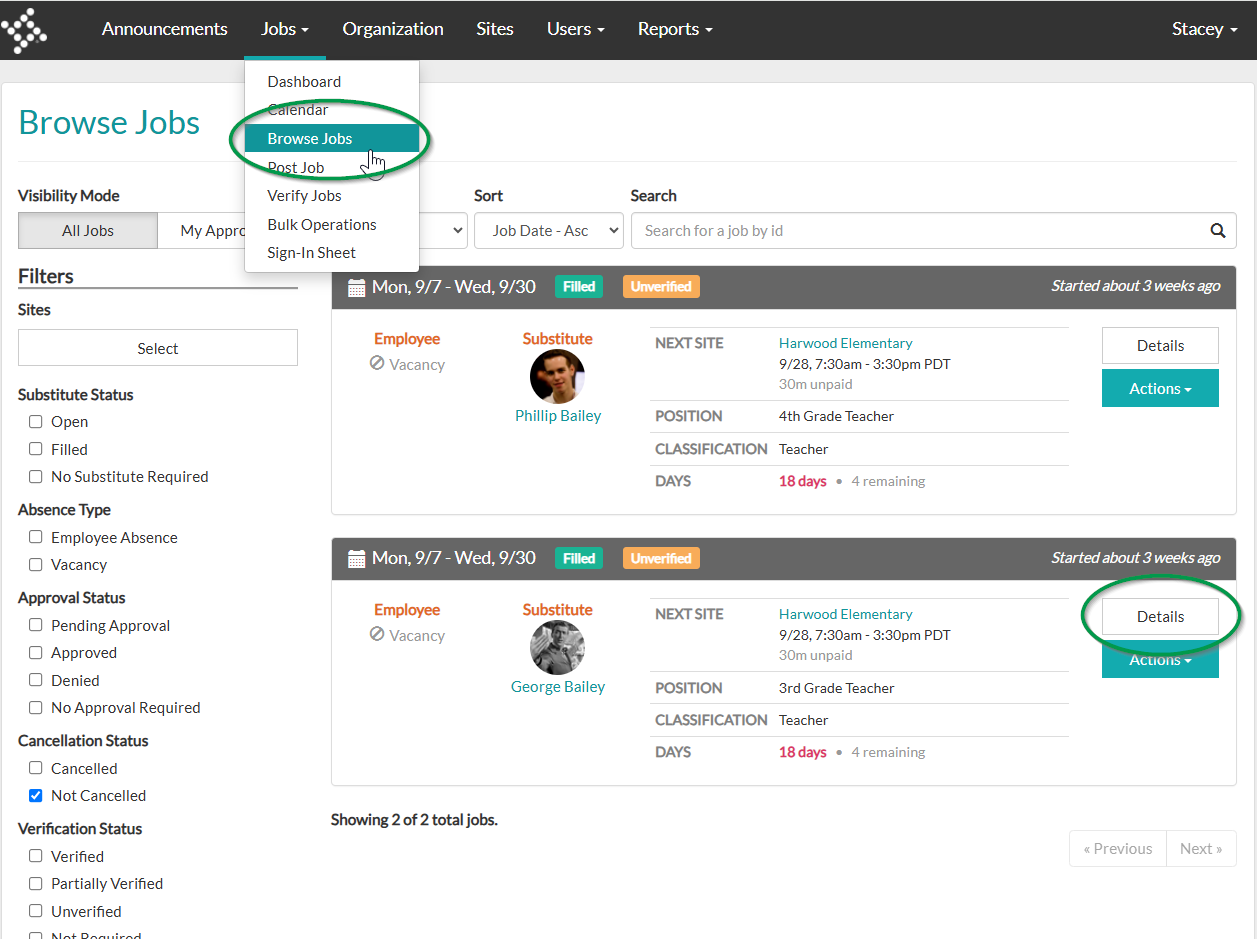
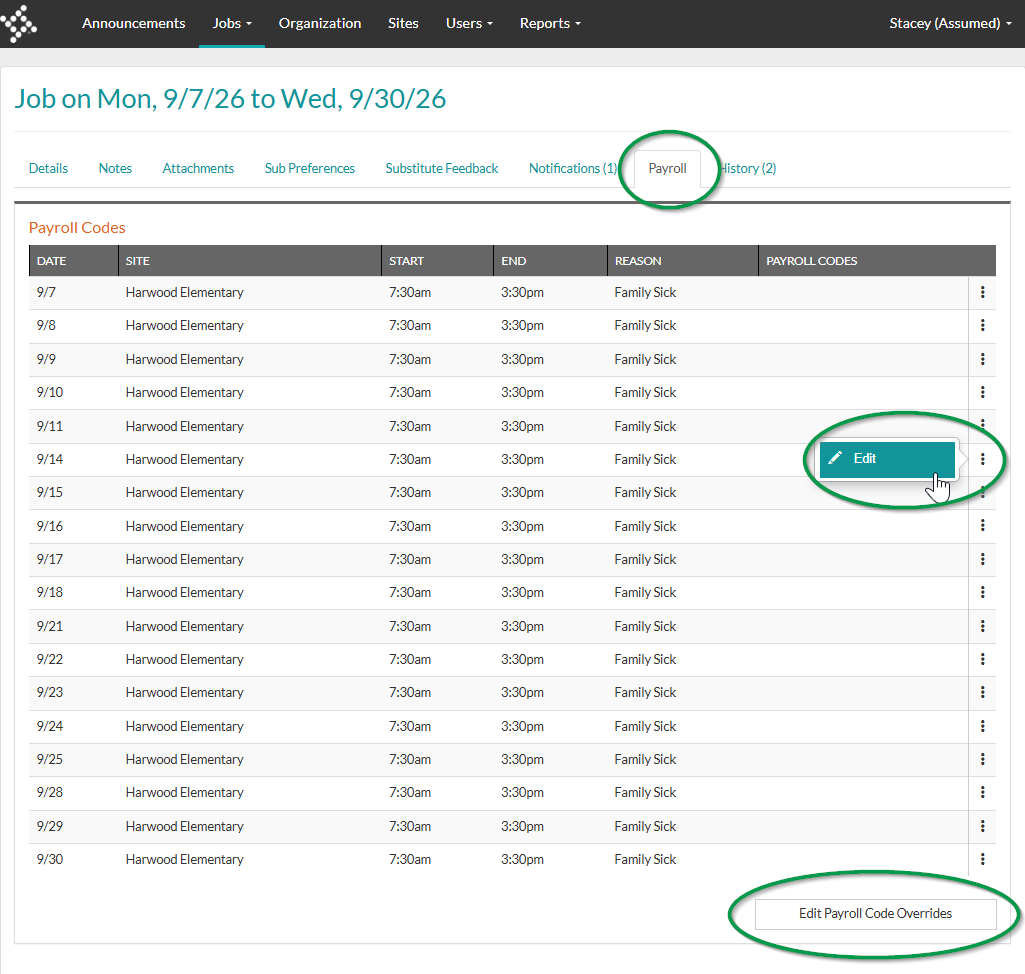
2. From the Job Details page, navigate to the Payroll tab and select the ellipses followed by Edit to override individual job segment payroll codes. Select the Edit Payroll Code Overrides button to override the payroll code for all job segments.
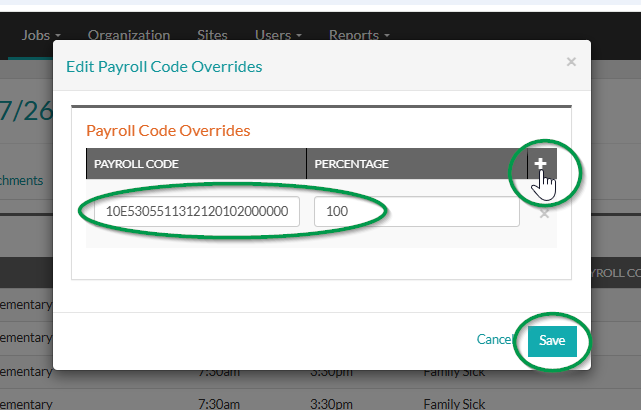
3. Click the "+" and add the Payroll Code and Percentage then click Save.
Notes:
- Multiple payroll codes can be added to the same override via the "+" sign
- The percentages must add up to 100 for the override to be saved
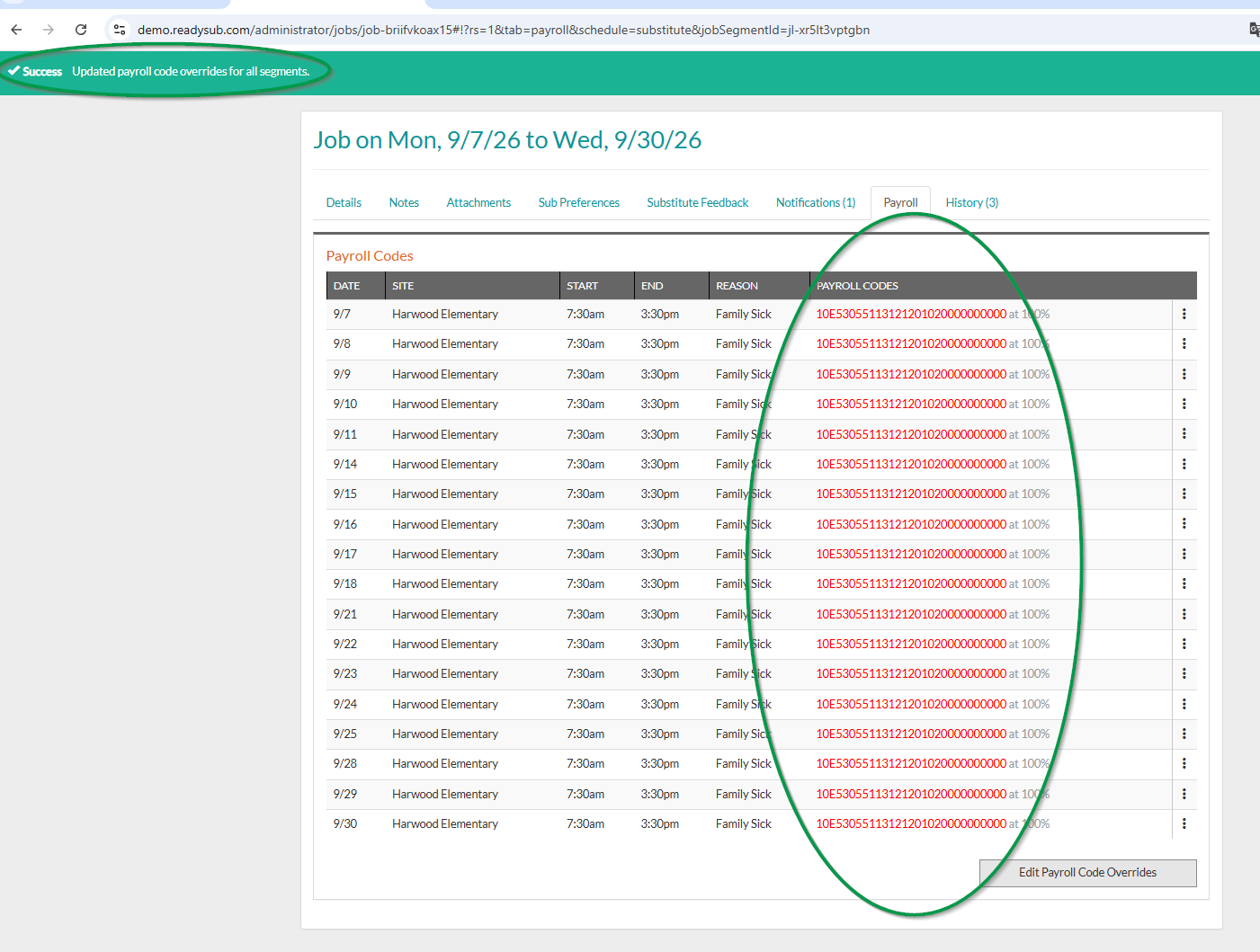
4. Review the overrides, and if additional overrides are required for individual job segments, use the ellipses > Edit option to override them.
Here are a few additional articles related to payroll codes and how they function in Absence & Substitute.
- How to add a payroll code and percentages to an employee profile
- All about Custom Reports (for how to export job segment payroll codes)